Availability Manager
Availability Manager
Room availability management system based on the number of available units. Allows you to set how many units of a room are bookable in a given time period, automatically decreasing the counter with each booking.
Overview
HRM Availability Manager allows you to manage room availability by setting the number of available units for one or more rooms in a defined time period.
The operation is simple and automatic:
- You set the number of available units for a room in a given period, taking into account existing bookings
- Each time a room is occupied by a booking, the available number decreases
- When the counter reaches 0, the room is no longer bookable for that period
- As bookings are cancelled or stays end, the number increases back to the set value
This system is ideal for facilities that have multiple units of the same room type (e.g., 5 standard double rooms, 3 suites, etc.).
Practical Example
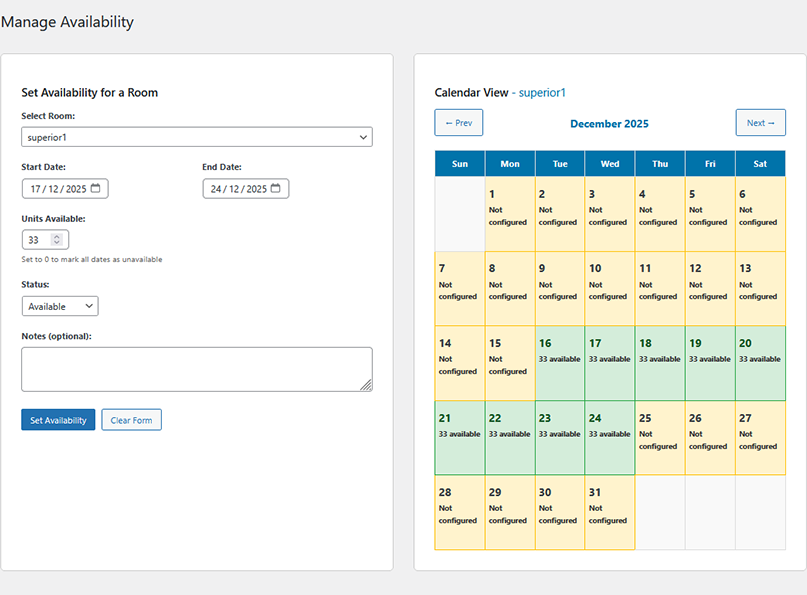
Scenario: You manage a hotel with 30 identical Superior 1 rooms.
Initial Configuration
You set availability for the "Superior 1 Room" type:
- Room: Superior 1 Room
- Period: December 18 - 25
- Available units: 30
Booking Flow
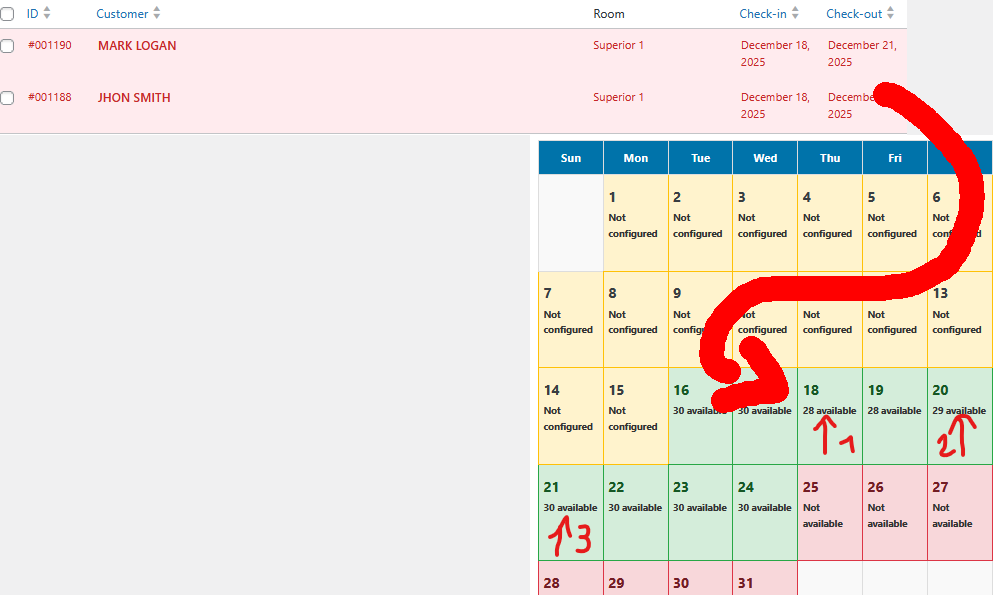
- Initial state: 30 units available in Superior 1 room
- Customer Mark Logan books from December 18 to 21 → the room will have one less unit from December 18 to 20 (the 21st is Logan's checkout) → 29 units available
- Customer John Smith books from December 18 to 20 → the room will have another less unit from December 18 to 19 (the 20th is Smith's checkout) → 28 units available
- Customer John Smith checks out on December 20 → available rooms return to 29
- Customer Mark Logan checks out on December 21 → available rooms return to 30
If one of the two customers wishes to extend their stay, the booking can be manually modified by the administrator, or made anew after the first checkout date.
Setting Availability
You can set the number of available units in two ways:
For a Specific Room
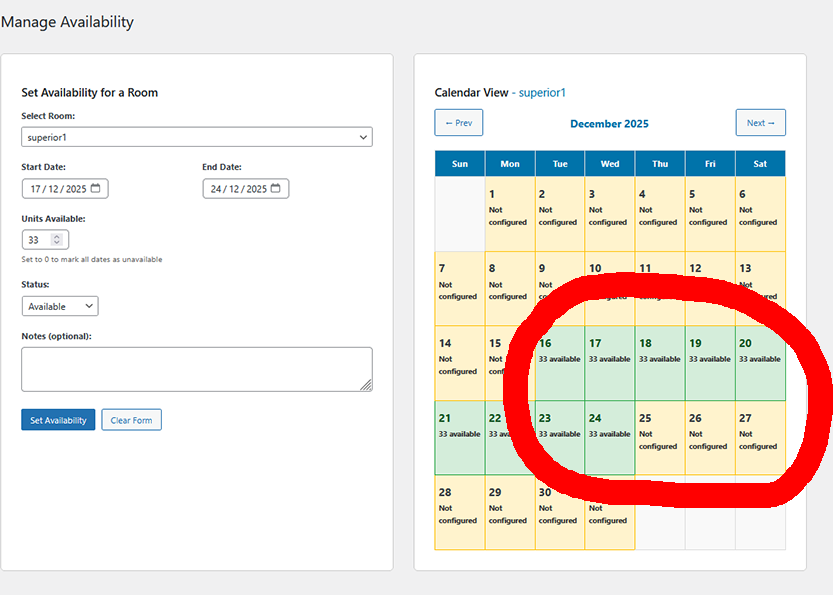
- Go to HRM Availability → Manage Availability
- Select the room from the list
- Define the period (start date and end date)
- Enter the number of available units
- Save
For Multiple Rooms (Bulk Action)
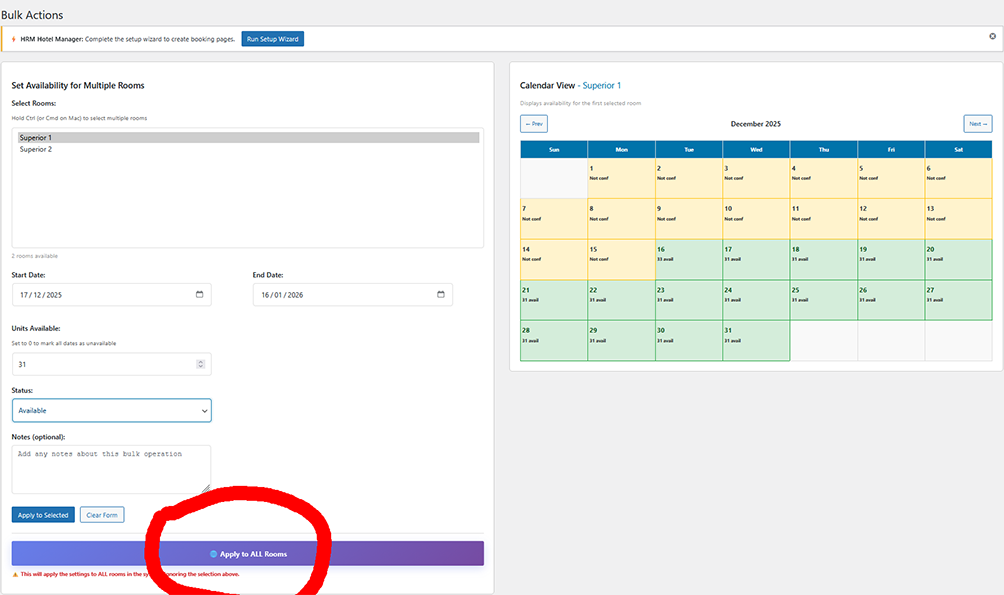
To quickly configure availability for multiple rooms simultaneously:
- Go to HRM Availability → Manage Availability
- Select the desired rooms via checkboxes
- Define the period and number of units
- Apply to all selected rooms
Bulk actions are particularly useful for:
- Configuring initial availability for all rooms
- Seasonally opening or closing the entire facility
- Modifying availability for a group of rooms of the same type
Integration with Booking Manager
When HRM Booking Manager is active, availability synchronization is completely automatic:
- New confirmed booking: the number of available units decreases for the stay dates
- Cancelled booking: the number of available units increases, freeing up the dates
- Real-time verification: the booking form automatically checks availability before allowing submission
If a room has 0 available units for a given period, the booking form will automatically show the room as "Not available" and will not allow selection of those dates.
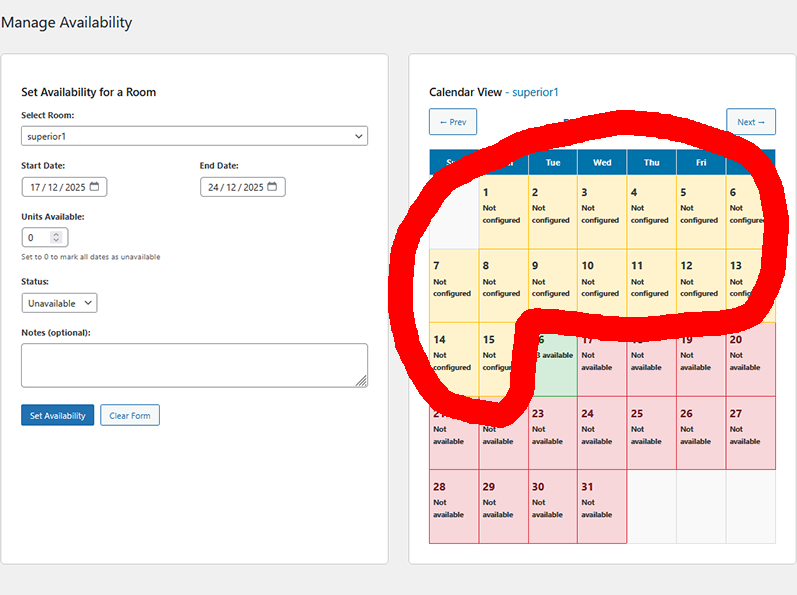
WordPress Menu Position
After activation, HRM Availability Manager adds the following menu items:
- HRM Availability - Main menu
- → Manage Availability - Main interface for setting available units
- → Appearance - Calendar graphic customization
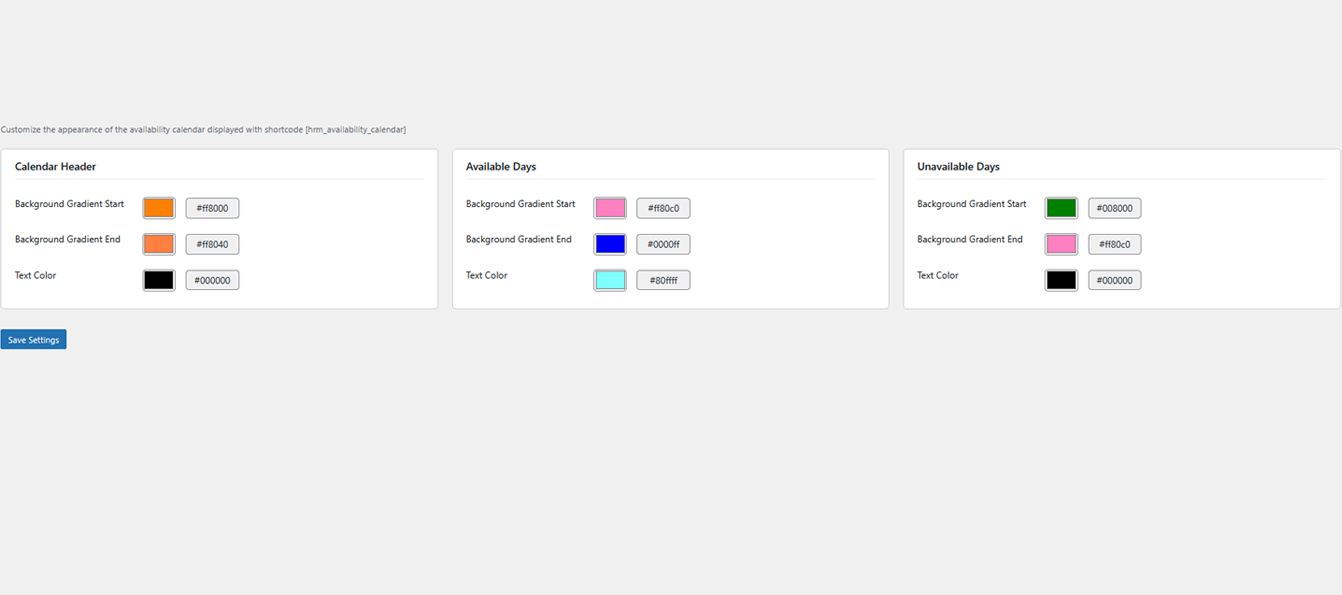
Calendar Appearance Customization
From the HRM Availability → Appearance section you can customize the appearance of the availability calendar shown with the [hrmrm_availability_calendar] shortcode.
Options are organized into three sections:
Calendar Header
Customize the calendar header (month/year and navigation).
| Option | Description |
|---|---|
Background Gradient Start |
Initial gradient color of the header background |
Background Gradient End |
Final gradient color of the header background |
Text Color |
Text color in the header (month, year, navigation arrows) |
Available Days
Customize the appearance of calendar cells for days with availability.
| Option | Description |
|---|---|
Background Gradient Start |
Initial gradient color for available days |
Background Gradient End |
Final gradient color for available days |
Text Color |
Text color (day number) for available days |
Unavailable Days
Customize the appearance of calendar cells for days without availability.
| Option | Description |
|---|---|
Background Gradient Start |
Initial gradient color for unavailable days |
Background Gradient End |
Final gradient color for unavailable days |
Text Color |
Text color (day number) for unavailable days |
Use colors with good contrast between background and text to ensure readability. Colors are applied in real-time to the frontend calendar.