Room Manager
Room Manager
Professional system for room management with seasonal pricing, configurable supplements, responsive photo gallery, and customizable layouts. This is the fundamental module of HRMpilot Room Manager on which all other modules are based.
Overview
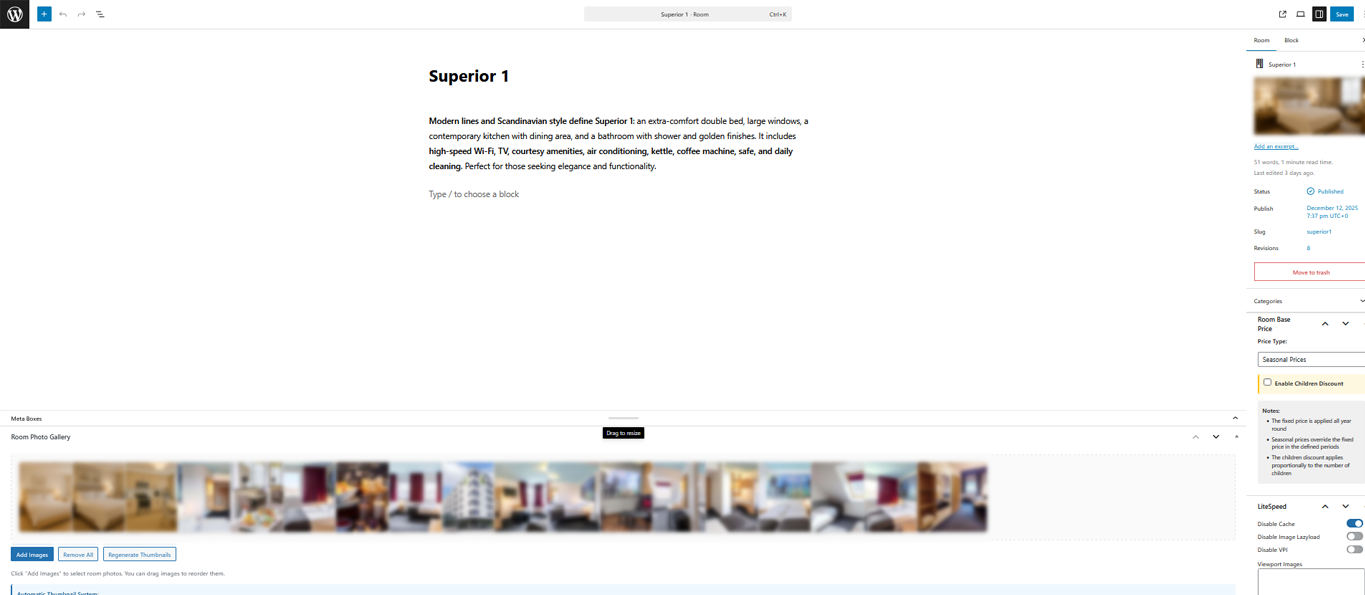
Room Manager introduces a Custom Post Type "hrm_room" dedicated to managing the rooms of your accommodation facility. Each room can be configured with detailed information, multiple images organized in a gallery, variable prices by season, and additional supplements such as extra bed or breakfast.
Creating a Room
To create a new room, go to the Rooms → Add New menu in the WordPress backend.
Basic Information
In the main section you can enter:
- Title - The room name (e.g., "Deluxe Suite with Sea View", "Standard Double Room")
- Description - Descriptive text in the WordPress editor with rich text formatting support
- Featured Image - The main image shown in lists and previews
Room Details Metabox
The "Room Details" metabox allows you to configure technical information and display options:
| Field | Type | Description |
|---|---|---|
| Price Type | Selection | Price calculation mode: Fixed Price or Seasonal Price |
| Capacity | Number | Maximum number of guests for the room |
| Display Layout | Selection (1-4) | Number of columns for room display on the frontend |
| Show Price | Yes / No | Option to show or hide the price in the public display |
| Show Gallery | Yes / No | Option to show or hide the photo gallery |
Seasonal Pricing System
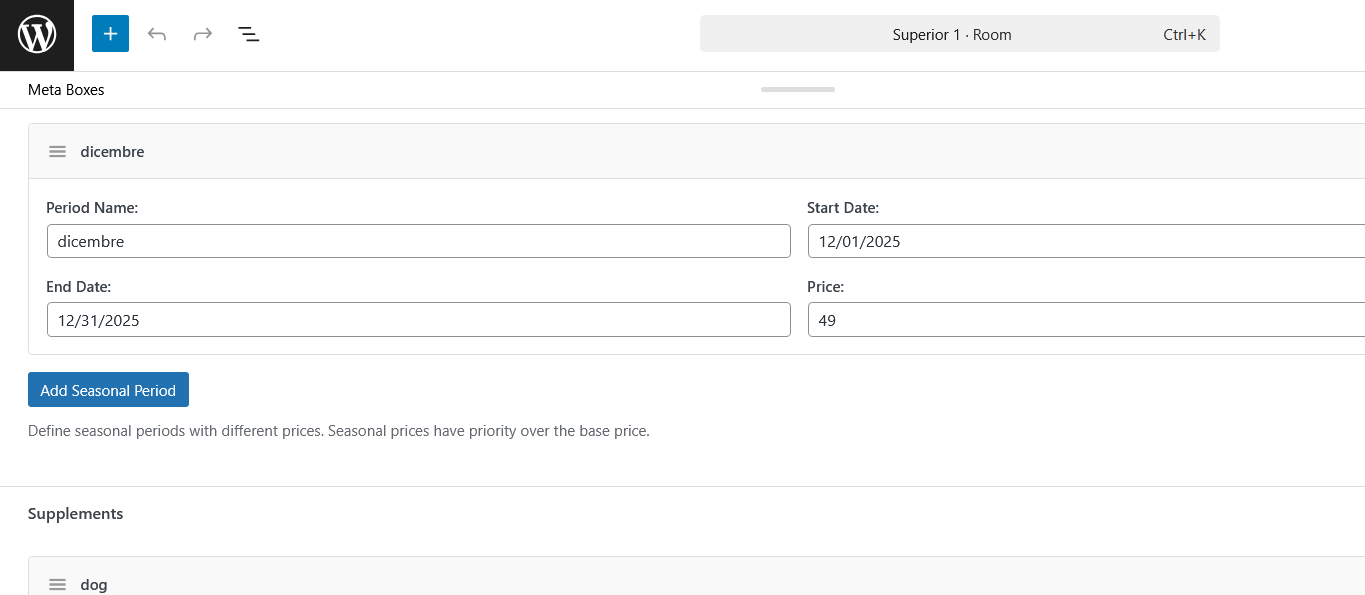
The Room Manager pricing system is designed to handle the complexity of hotel rates that vary throughout the year.
Base Price (Fixed)
If you select Fixed Price (Base) in the Room Details metabox, the room will have a single rate for the entire year.
Seasonal Price
By selecting Seasonal Price, you can define different rates for specific periods of the year.
Photo Gallery
Each room can have an image gallery managed through the "Room Gallery" metabox. The system uses the WordPress Media Library for image management.
Room Supplements
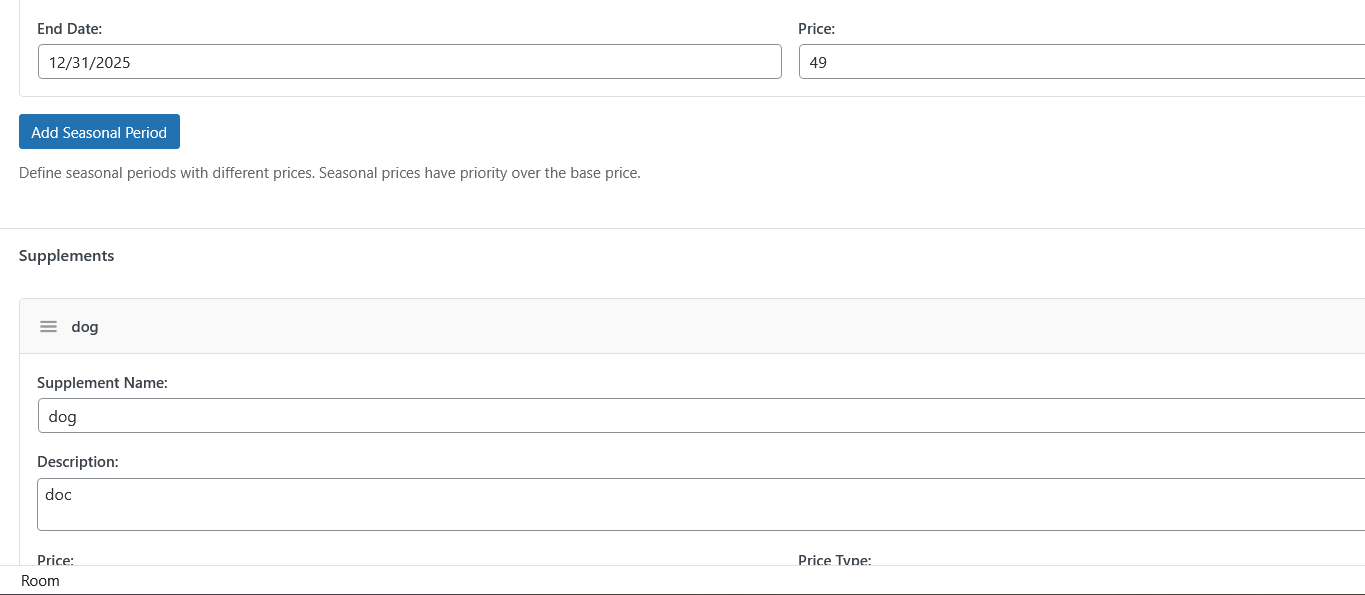
Supplements are additional services or costs that guests can select during booking.
Supplement Configuration
In the "Supplements" metabox you can add supplements by clicking "Add Supplement". For each supplement configure:
| Field | Description |
|---|---|
| Name | Descriptive name of the supplement (e.g., "Room Breakfast", "Extra Bed") |
| Price | Cost of the supplement |
| Price Type | How the price is calculated |
| Description | Optional descriptive text shown to the customer |
| Required | If enabled, the supplement is always included in the booking |
Supplement Price Types
- Fixed Price - A fixed amount added to the total
- Percentage of Total - A percentage calculated on the booking total
Children's Discount
You can enable a dedicated children's discount by applying a percentage discount for each child present in the booking. This feature is useful for facilities that offer reduced rates for minors. The discount is automatically calculated based on the number of children indicated in the booking form and is applied to the room rate.
Plugin Settings
Room Manager general settings are accessible from the Rooms → Settings menu.
General Settings
| Option | Values | Description |
|---|---|---|
| Currency | EUR, USD, GBP, CHF, etc. | The currency used for all prices. |
| Currency Symbol | €, $, £, CHF, etc. | The symbol shown next to prices. |
| Symbol Position | Before / After | Where to display the symbol relative to the amount. |
| Decimal Separator | Period / Comma | Character to separate decimals. |
| Thousands Separator | Period / Comma / Space / None | Character to separate thousands. |
| Decimals | 0, 1, 2 | Number of decimal places to show. |
| Show Gallery on All Rooms | Yes / No / Use individual room setting | Overrides each individual room's photo gallery settings if set. |
| Show Price on All Rooms | Yes / No / Use individual room setting | Overrides each individual room's price display settings. |
| Gallery Columns (All Rooms) | 1, 2, 3, 4 | Every photo gallery will always have the set number of columns. |
| Gallery Thumbnail Display Size | thumbnail, medium, large, full | The size of each thumbnail for all configured rooms. |
| Date Format | dd/mm/yyyy / mm/dd/yyyy | Sets the European or American date format. |
Color Customization
In the Color Customization section you can customize the colors of the price band and the booking button. Changes are displayed in real-time in the preview.
Price Range Colors
Customize the colors of the band showing the room price:
| Option | Description |
|---|---|
| Gradient Start Color | Initial gradient color of the price band. Defines the color on the left side of the band. |
| Gradient End Color | Final gradient color of the price band. Defines the color on the right side of the band. |
| Text Color | Color of the text displayed on the price band (price and "per night" label). |
Book Button Colors
Customize the colors of the "Book Now" button displayed on the room page:
| Option | Description |
|---|---|
| Gradient Start Color | Initial gradient color of the button. Defines the color at the top of the button. |
| Gradient End Color | Final gradient color of the button. Defines the color at the bottom of the button. |
| Text Color | Color of the "BOOK NOW" text displayed on the button. |
To get a uniform color (without gradient), set the same hexadecimal value for both "Gradient Start Color" and "Gradient End Color".
Seasonal Prices Management
This section provides tools to manage seasonal prices and supplements across all rooms simultaneously:
Copy Seasonal Prices
| Option | Description |
|---|---|
| Select source room | Select the room from which to copy seasonal prices. |
| Copy Prices to All Rooms | Copy the seasonal prices from the selected room to all other rooms, overwriting existing prices. |
Copy Supplements
| Option | Description |
|---|---|
| Select the source room | Select the room from which to copy supplements. |
| Copy Supplements to All Rooms | Copy the supplements from the selected room to all other rooms, overwriting existing supplements. |
These operations will overwrite existing data on all rooms. Make sure you want to proceed before clicking the copy buttons.
Featured Image Settings
Set maximum dimensions for the featured image on room pages. Use 0 for no limits.
| Option | Description |
|---|---|
| Maximum Width (px) | Maximum width in pixels of the featured image (e.g., 800, 1200). Use 0 for no limit. |
| Maximum Height (px) | Maximum height in pixels of the featured image (e.g., 600, 800). Use 0 for no limit. |
Photo Gallery Position
Choose where to display the photo gallery on the room page:
| Option | Description |
|---|---|
| After the content | Default position. The gallery is shown after the room's descriptive content. |
| Below the featured image | The gallery is shown below the featured image and above the price. |
The gallery will only be shown if enabled in each room's individual settings.
Templates and Display
Room Manager includes default templates for displaying rooms on the frontend. Template files are located in the plugin's templates/ folder:
single-hrm_room.php- Single room page templatearchive-hrm_room.php- Room archive/list template
These templates can be overridden by copying them to your active theme folder, following standard WordPress template hierarchy rules.