Booking Manager
Booking Manager
Complete booking management system with customizable frontend form, automatic price calculation, status management, configurable email notifications, and online payment integration. The operational core of the HRM suite for managing accommodation requests.
Overview
HRM Booking Manager transforms your WordPress site into a complete booking system. The plugin manages the entire lifecycle of a booking: from the customer's initial request through the frontend form, to confirmation, check-in, check-out, and possible cancellation.
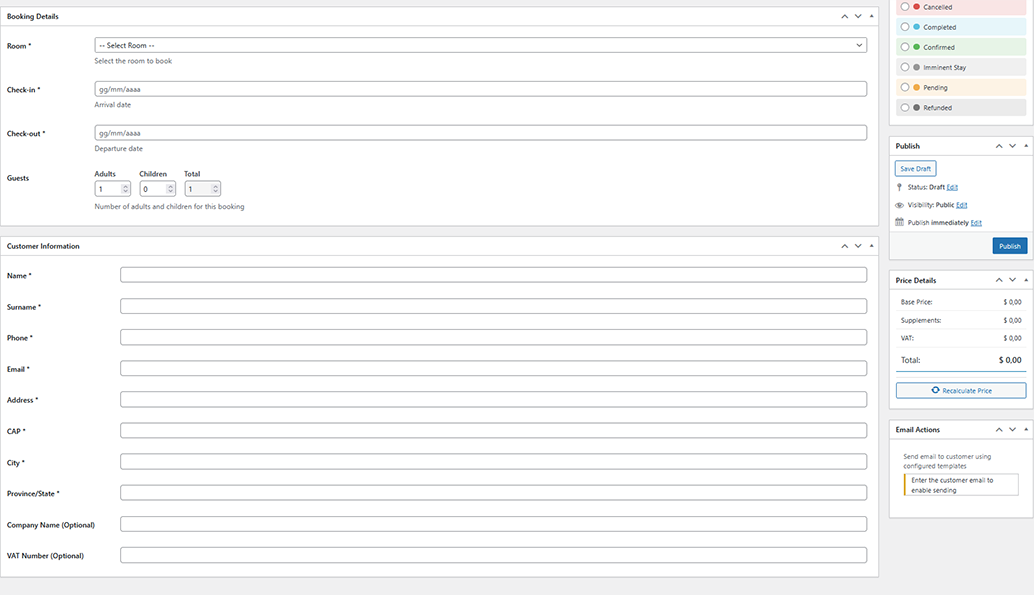
The plugin creates a Custom Post Type "hrm_booking" with custom statuses that reflect the operational flow of an accommodation facility. Each booking contains all necessary information: guest data, stay dates, booked room, calculated price, selected supplements, and modification history.
Integration with other suite plugins is deep:
- Room Manager - Retrieves room information, base and seasonal prices, supplements
- Availability Manager - Verifies and updates availability in real-time
Main Features
Booking Form
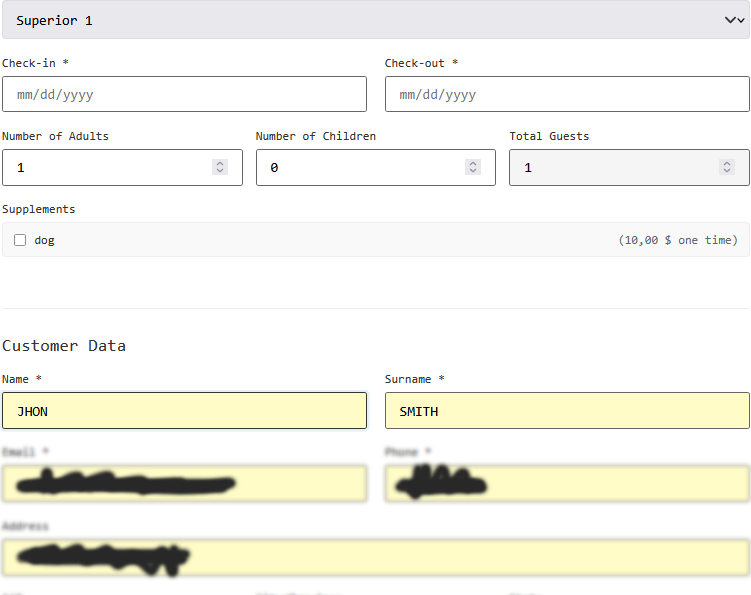
Responsive frontend form with validation, date picker, guest and supplement selection, real-time price calculation.
Automatic Calculation
Price calculation considering seasons, weekends, supplements, number of guests, and applicable discounts.
Email Notifications
Customizable automatic emails for confirmations, reminders, cancellations, and admin communications.
Data Export
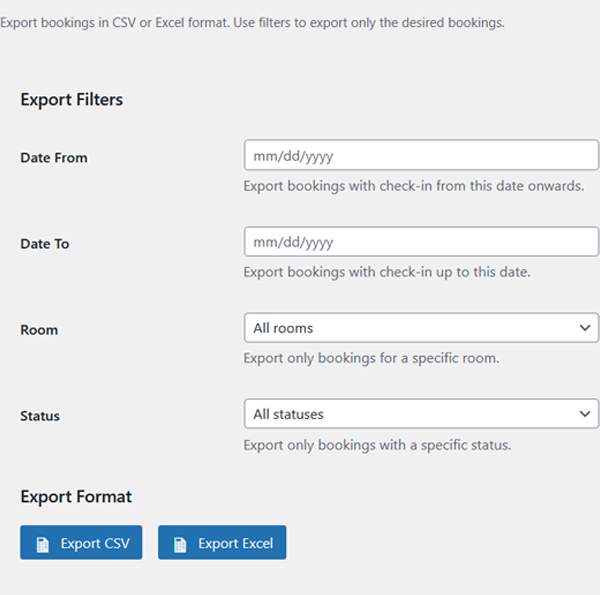
Export bookings to CSV/Excel with filters by period, status, and room.
Booking Statuses
Each booking goes through different statuses during its lifecycle. Statuses are displayed with distinctive colors in the booking list:
| Status | Color | Description | Available Actions |
|---|---|---|---|
| Pending | Orange | New booking received, awaiting confirmation or payment | Confirm, Reject, Edit, Delete |
| Confirmed | Green | Booking confirmed (payment received or manual confirmation) | Check-in, Edit, Cancel |
| Imminent Stay | Yellow | Imminent check-in (within 2 days of arrival date) | Check-in, Send reminder, Edit |
| Check-in | Blue | Guest arrived, stay in progress | Check-out, Add Notes |
| Check-out | Purple | Stay completed, guest departed | Archive, View |
| Cancelled | Red | Booking cancelled (by customer or admin) | Restore, Delete permanently |
| Rejected | Gray | Request not accepted by the facility | Delete permanently |
Standard Booking Flow
- Customer fills out the form → Status: Pending
- Payment received (or manual confirmation) → Status: Confirmed
- Arrival day → Operator marks Check-in
- Departure day → Operator marks Check-out
- After 30 days → Automatic archiving (optional)
Frontend Booking Form
The booking form is the main tool through which site visitors submit their requests. It can be inserted on any page via shortcode.
Basic Shortcode
Available Parameters
| Attribute | Type | Default | Description |
|---|---|---|---|
show_slideshow |
boolean |
yes |
Show room slideshow above the form |
rooms |
text |
empty | Comma-separated room IDs (empty = all) |
title |
text |
Book Now |
Booking form title |
button_text |
text |
Submit Booking |
Submit button text |
show_room_grid |
boolean |
no |
Show room grid |
grid_columns |
number |
2 |
Number of grid columns (max 3) |
grid_show_price |
boolean |
yes |
Show prices in grid |
grid_show_excerpt |
boolean |
no |
Show excerpt in grid |
grid_orderby |
text |
menu_order |
Grid sorting (menu_order, title, date) |
grid_order |
text |
ASC |
Ascending/descending order (ASC/DESC) |
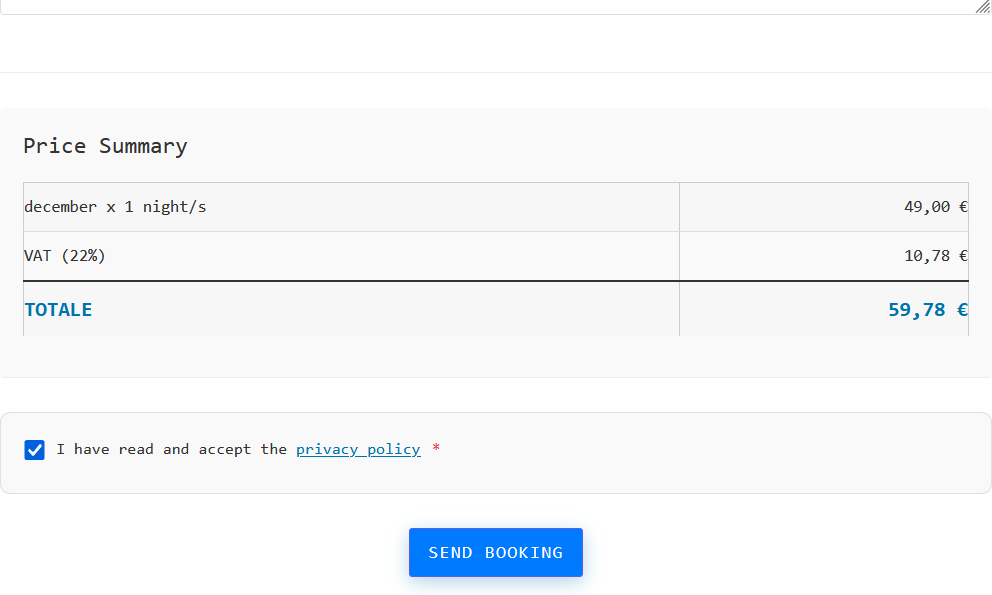
Automatic Price Calculation
The system automatically calculates the total booking price considering multiple factors:
- Room base price - Per night rate from Room Manager configuration
- Seasonal prices - If the date falls within a season, uses that rate
- Weekend surcharge - Special rate for Friday and Saturday (if configured)
- Selected supplements - Extra services chosen by the customer
- Number of guests - For "per person" or "per person/night" supplements
- Discounts - Any discount codes or active promotions
Calculation Example
Scenario: Booking from August 15-18 (3 nights) for 2 adults and 1 child
Room configuration:
- Base price: €80/night
- High season (Jul 1 - Aug 31): €120/night, weekend €140/night
- Breakfast supplement: €15/person/night
- Crib supplement: €0 (free)
Calculation:
- August 15 (Thursday): €120
- August 16 (Friday): €140 (weekend)
- August 17 (Saturday): €140 (weekend)
- Room subtotal: €400
- Breakfast (3 people × 3 nights × €15): €135
- Crib: €0
- TOTAL: €535
Email Template System
HRM Booking Manager includes a complete automatic email notification system. Each template can be customized both in content and graphic appearance, ensuring professional communications consistent with your facility's brand.
Email Types
The plugin manages seven types of emails, each associated with a specific booking status:
| Template | Description |
|---|---|
| Pending | Email sent when the booking is awaiting confirmation |
| Confirmed | Email sent when the booking is confirmed |
| Imminent Stay | Reminder email sent when check-in is imminent |
| Cancelled | Email sent when the booking is cancelled |
| Refunded | Email sent when a refund is made |
| Custom | Custom template for specific communications |
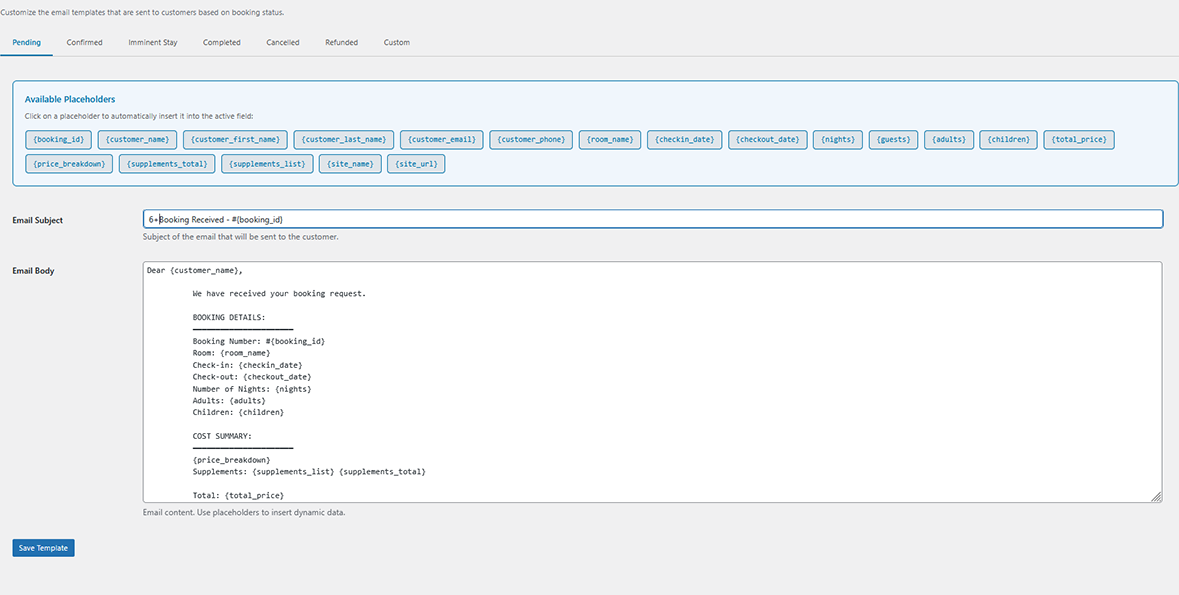
Accessing the Template Editor
To customize email templates, go to Bookings → Email Templates. The page shows a list of all available templates with:
- Template name
- Status (active/inactive)
- Last update
- Buttons: Edit, Preview, Send Test
Template Structure
Each email template consists of three parts:
- Subject - The subject line that appears in the recipient's inbox
- HTML Content - The email body with full formatting
- Text Content - Alternative plain text version (for clients that don't support HTML)
Available Placeholders
Placeholders are markers that are replaced with actual booking data when sending. Always use curly braces {} to identify them.
Customer Data
| Placeholder | Description | Example Output |
|---|---|---|
{customer_name} |
Full name | John Smith |
{customer_first_name} |
First name only | John |
{customer_last_name} |
Last name only | Smith |
{customer_email} |
Email address | john.smith@email.com |
{customer_phone} |
Phone number | +1 555 123 4567 |
{customer_notes} |
Notes entered by customer | We'll arrive after 10:00 PM |
Booking Data
| Placeholder | Description | Example Output |
|---|---|---|
{booking_id} |
Unique numeric ID | 001234 |
Stay Data
| Placeholder | Description | Example Output |
|---|---|---|
{room_name} |
Room name | Deluxe Suite |
{checkin_date} |
Formatted arrival date | July 20, 2024 |
{checkout_date} |
Formatted departure date | July 25, 2024 |
{nights} |
Number of nights | 5 |
{adults} |
Number of adults (empty if not present) | 2 |
{children} |
Number of children (empty if 0) | 1 |
{guests} |
Total guests | 3 |
Financial Data
| Placeholder | Description | Example Output |
|---|---|---|
{total_price} |
Total with currency symbol | €535.00 |
{room_price} |
Room cost only | €400.00 |
{supplements_total} |
Supplements total | €135.00 |
{supplements_list} |
Detailed supplements list | Breakfast (€135), Parking (€0) |
Facility Data
| Placeholder | Description | Example Output |
|---|---|---|
{site_name} |
Site/facility name | Hotel Villa Rosa |
{site_url} |
Site URL | https://www.villarosa.com |
Template Example: Booking Confirmation Email
Here's a complete template example for the booking confirmation email:
Subject:
Booking Confirmation #{booking_id} - {site_name}HTML Content:
<!DOCTYPE html>
<html>
<head>
<style>
body { font-family: Arial, sans-serif; line-height: 1.6; color: #333; }
.header { background-color: #2c5282; color: white; padding: 20px; text-align: center; }
.content { padding: 30px; }
.booking-details { background-color: #f7fafc; padding: 20px; border-radius: 8px; margin: 20px 0; }
.detail-row { display: flex; justify-content: space-between; padding: 8px 0; border-bottom: 1px solid #e2e8f0; }
.total-row { font-size: 18px; font-weight: bold; color: #2c5282; }
.footer { background-color: #f7fafc; padding: 20px; text-align: center; font-size: 12px; }
</style>
</head>
<body>
<div class="header">
<h1>Booking Confirmed</h1>
</div>
<div class="content">
<p>Dear {customer_first_name},</p>
<p>We are pleased to confirm your booking at {site_name}.</p>
<div class="booking-details">
<h3>Booking Summary #{booking_id}</h3>
<div class="detail-row">
<span>Room:</span>
<strong>{room_name}</strong>
</div>
<div class="detail-row">
<span>Check-in:</span>
<strong>{checkin_date} (from 3:00 PM)</strong>
</div>
<div class="detail-row">
<span>Check-out:</span>
<strong>{checkout_date} (by 10:00 AM)</strong>
</div>
<div class="detail-row">
<span>Nights:</span>
<strong>{nights}</strong>
</div>
<div class="detail-row">
<span>Guests:</span>
<strong>{adults} adults, {children} children</strong>
</div>
<div class="detail-row">
<span>Included services:</span>
<strong>{supplements_list}</strong>
</div>
<div class="detail-row total-row">
<span>TOTAL:</span>
<strong>{total_price}</strong>
</div>
</div>
<p>For any questions or special requests, please don't hesitate to contact us.</p>
<p>
We look forward to welcoming you!<br>
The {site_name} Staff
</p>
</div>
<div class="footer">
<p>{site_name} | {site_address}</p>
<p>Phone: {site_phone} | Email: {site_email}</p>
<p>© {current_year} - All rights reserved</p>
</div>
</body>
</html>Template Example: Arrival Reminder Email
Subject:
See you soon! - Your booking #{booking_id}HTML Content (excerpt):
<p>Dear {customer_first_name},</p>

<p>We're writing to remind you that your stay at {site_name}
is just around the corner!</p>

<p><strong>Your arrival is scheduled for {checkin_date}.</strong></p>

<h3>Useful information:</h3>
<ul>
    <li>Check-in available from 3:00 PM</li>
    <li>Reception open 24 hours</li>
    <li>Free parking available</li>
</ul>

<h3>How to reach us:</h3>
<p>{site_address}</p>
<p>[Insert map or directions here]</p>

<p>In case of delay or unforeseen circumstances, please contact us
at {site_phone}.</p>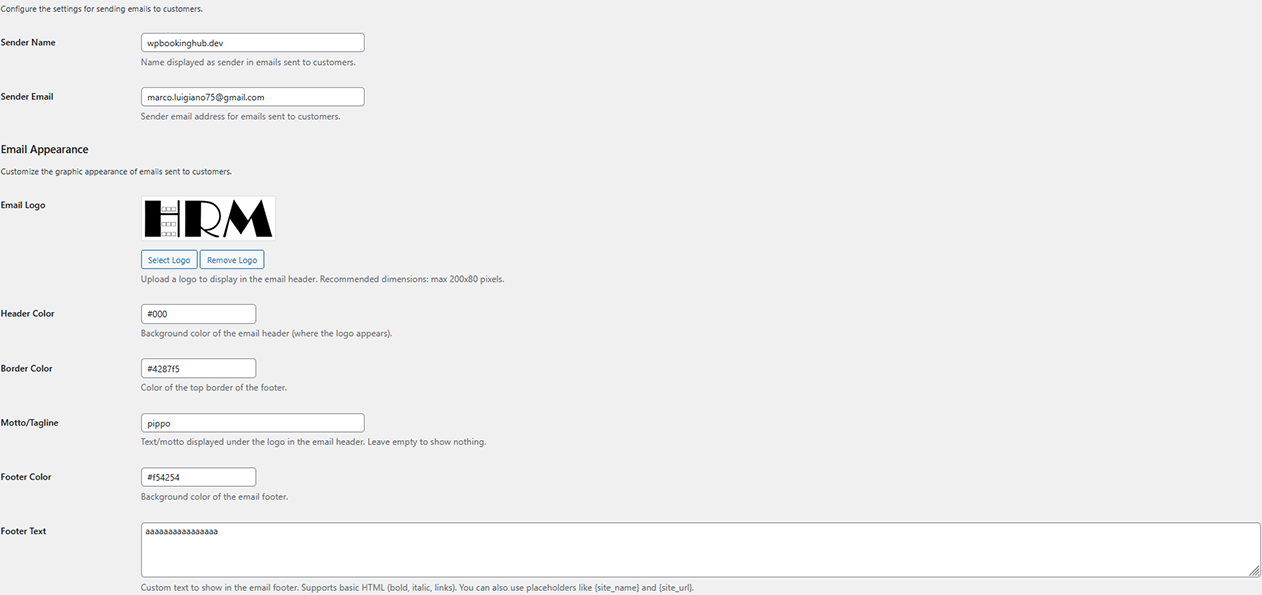
If emails end up in spam or aren't delivered, consider configuring a professional SMTP service like SendGrid, Mailgun, or Amazon SES. You can use plugins like "WP Mail SMTP" for configuration. Make sure the sender address is on a verified domain with correct SPF and DKIM records.
Plugin Settings
HRM Booking Manager settings are organized into different sections accessible from Bookings → Settings.
General Settings
Configure general booking system settings.
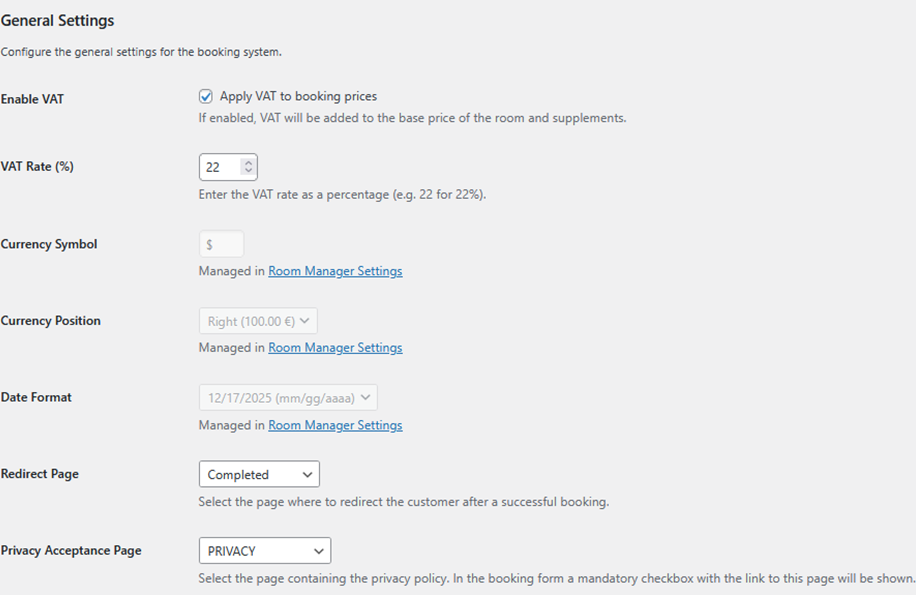
| Option | Description |
|---|---|
| Enable VAT | Enables VAT application to booking prices. If enabled, VAT will be added to the base price of the room and supplements. |
| VAT Rate (%) | Enter the VAT rate as a percentage (e.g., 22 for 22%). |
| Currency Symbol | Currency symbol (managed in Room Manager Settings). |
| Currency Position | Currency symbol position: Left (€100.00) or Right (100.00 €). Managed in Room Manager Settings. |
| Date Format | Date display format (managed in Room Manager Settings). |
| Redirect Page | Select the page to redirect the customer to after a successful booking. |
| Privacy Acceptance Page | Select the page containing the privacy policy. A mandatory checkbox with a link to this page will be shown in the booking form. |
Email Settings
Configure settings for sending emails to customers.
| Option | Description |
|---|---|
| Sender Name | Name displayed as the sender in emails sent to customers. |
| Sender Email | Sender email address for emails sent to customers. Use an address from your domain to improve deliverability. |
Email Appearance
Customize the graphic appearance of emails sent to customers.
| Option | Description |
|---|---|
| Email Logo | Upload a logo to display in the email header. Recommended dimensions: max 200x80 pixels. |
| Header Color | Email header background color (where the logo appears). |
| Border Color | Email footer top border color. |
| Motto/Tagline | Text/motto displayed below the logo in the email header. Leave empty to show nothing. |
| Footer Color | Email footer background color. |
| Footer Text | Custom text to display in the email footer. Supports basic HTML (bold, italic, links). You can use placeholders like {site_name} and {site_url}. |
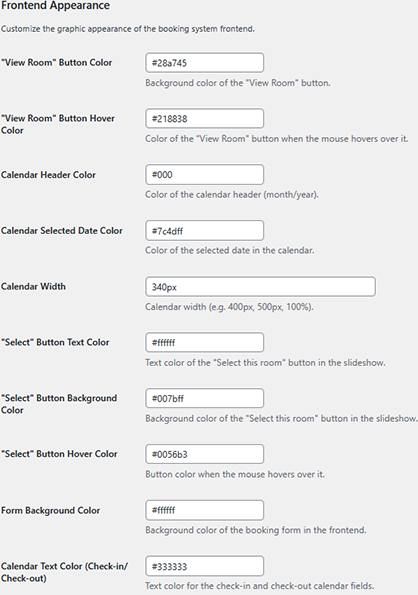
Frontend Appearance
Customize the graphic appearance of the booking system on the frontend.
| Option | Description |
|---|---|
| "View Room" Button Color | "View Room" button background color. |
| "View Room" Button Hover Color | "View Room" button color when mouse hovers over. |
| Calendar Header Color | Calendar header color (month/year). |
| Calendar Selected Date Color | Selected date color in the calendar. |
| Calendar Width | Calendar width (e.g., 400px, 500px, 100%). |
| "Select" Button Text Color | "Select this room" button text color in the slideshow. |
| "Select" Button Background Color | "Select this room" button background color in the slideshow. |
| "Select" Button Hover Color | Button color when mouse hovers over. |
| Form Background Color | Booking form background color on the frontend. |
| Calendar Text Color (Check-in/Check-out) | Text color for check-in and check-out calendar fields. |
Slideshow Settings
Customize the appearance and behavior of the room slideshow in the booking form.
| Option | Description |
|---|---|
| Autoplay | Enables automatic slide rotation. The slideshow stops automatically when mouse hovers over it. |
| Autoplay Speed (ms) | Time between slides in milliseconds (1000ms = 1 second). Default: 5000ms. |
| Show Navigation Arrows | Shows previous/next navigation arrows on the slideshow sides. |
| Show Navigation Dots | Shows navigation dots below the slideshow to jump directly to a specific slide. |
| Arrow Color | Navigation arrow icon color. |
| Arrow Background Color | Navigation arrow button background color. |
| Dot Color | Inactive navigation dot color. |
| Active Dot Color | Active navigation dot color (current slide). |
| Image Height (px) | Slideshow image height in pixels. Default: 400px. |
| Max Width (px) | Maximum slideshow container width. Default: 800px. |
| Border Radius (px) | Slideshow corner rounding. Set 0 for square corners. Default: 8px. |
Admin Notifications
Configure automatic email notifications sent to the administrator when new bookings are created or when an existing booking's status changes.
| Option | Description |
|---|---|
| Enable Admin Notifications | Enable/disable sending email notifications to the administrator. If disabled, no notifications will be sent even if other options are active. |
| Notification Email | Email address to receive notifications. If left empty, the WordPress administrator email will be used. |
| Notify on New Booking | Send an email notification every time a new booking is created from the frontend form. The email contains all booking details and a direct link to view it in the admin. |
| Notify on Status Change | Send an email notification every time a booking's status is changed (e.g., from "Pending" to "Confirmed"). The email indicates the old and new status. |
Admin notification emails use the same logo configured in the "Email Appearance" section. If you've set up a logo for customer emails, it will also be shown in admin notifications.
Shortbook Settings
Configure the appearance of the [shortbook] mini booking form. This shortcode creates a compact form that can be placed anywhere on your site (homepage, sidebar, etc.) to allow quick date and room selection before redirecting to the main booking page.
| Option | Description |
|---|---|
| Shortbook Background Color | Background color of the shortbook form container. |
| Shortbook Button Color | Background color of the submit button. |
| Shortbook Button Hover Color | Button color when mouse hovers over it. |
| Shortbook Button Text Color | Text color of the submit button. |
To use the shortbook form, add the shortcode [shortbook url="/your-booking-page/"] to any page, post, or widget. The url parameter is required and should point to the page containing your main booking form ([hrmrm_booking_form]).
WordPress Menu Position
| Menu Item | Function |
|---|---|
| Bookings | Main menu |
| → All Bookings | List with filters and bulk actions |
| → Add New | Create manual booking |
| → Calendar | Booking calendar view |
| → Export | Data export |
| → Email Templates | Email template editor |
| → Settings | Plugin configuration |
Database Management and Backup
Database management has been optimized to handle a large number of bookings. However, it's always recommended to keep the booking list updated by periodically deleting completed ones to maintain optimal system performance.
You can use the Export function (Bookings → Export menu) to save booking data to an Excel file before deleting them from the system.
Disclaimer: Data storage and backup remain the user's responsibility. We assume no responsibility in case of data loss, theft, or damage.